Building a Real-Time Chat App with SignalR in .NET and React
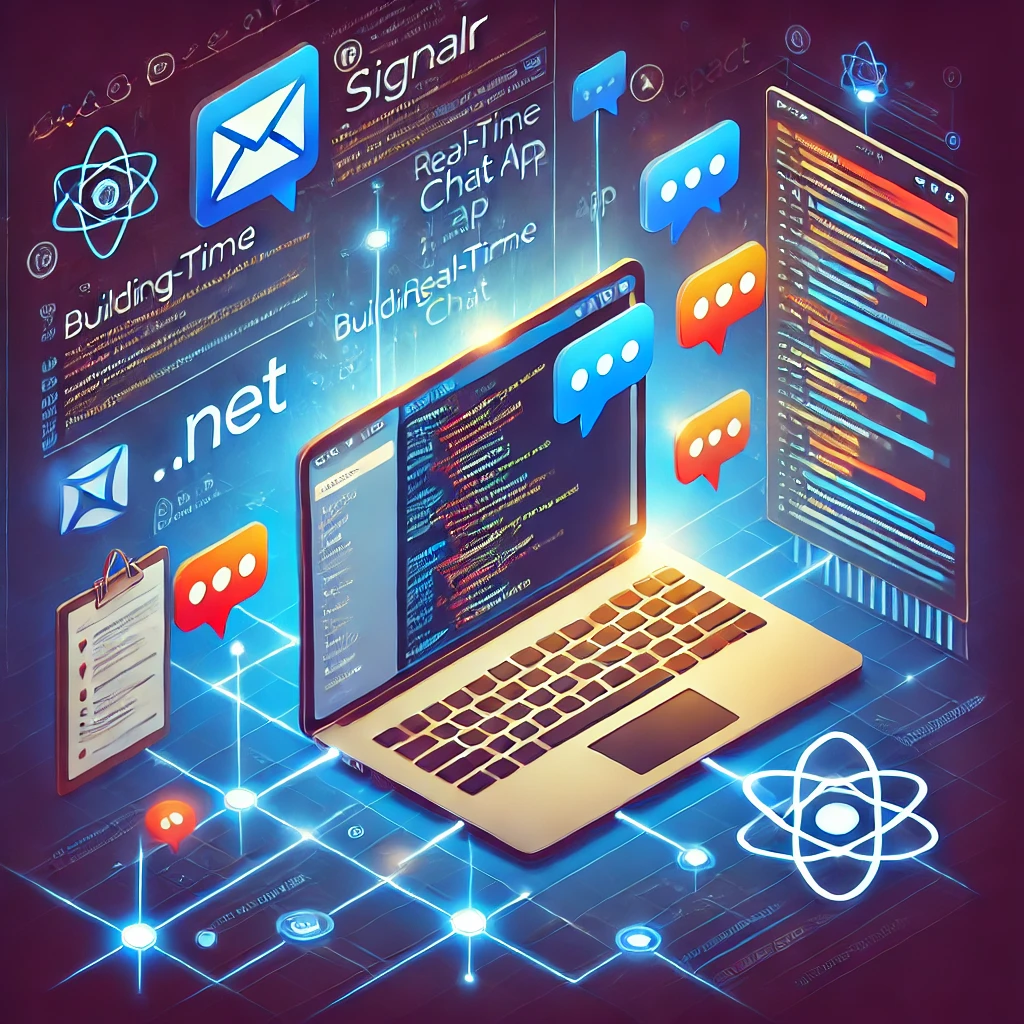
Are you ready to dive into the exciting world of real-time chat applications? In this blog, we will guide you through the process of creating a chat app using SignalR in .NET and React. SignalR is a powerful library that enables real-time communication between the server and connected clients, making it an excellent choice for building chat applications.
Prerequisites: Before we begin, ensure you have the following prerequisites installed on your machine:
-
.NET SDK
-
Node.js and npm (Node Package Manager)
-
Visual Studio Code or any preferred code editor
Step 1: Setting up the Backend with SignalR
- Create a new ASP.NET Core project with the following command:
dotnet new webapi -n ChatAppBackend
- Navigate to the project directory and install the SignalR package:
cd ChatAppBackend
dotnet add package Microsoft.AspNetCore.SignalR
- Open the
Startup.csfile and configure the services and endpoints for SignalR. Add the following code to theConfigureServicesmethod:
using Microsoft.AspNetCore.SignalR;

public void ConfigureServices(IServiceCollection services)
{
    // ... Other services

    services.AddSignalR();
}
- Next, configure the app to use SignalR in the
Configuremethod:
public void Configure(IApplicationBuilder app, IWebHostEnvironment env)
{
    // ... Other configurations

    app.UseRouting();

    app.UseEndpoints(endpoints =>
    {
        endpoints.MapHub<ChatHub>("/chathub"); // This will be the endpoint for SignalR
        endpoints.MapControllers();
    });
}
- Now, let's create the
ChatHubclass. Create a new folder namedHubsand add a new class calledChatHub.cs:
using Microsoft.AspNetCore.SignalR;
using System.Threading.Tasks;

public class ChatHub : Hub
{
    public async Task SendMessage(string user, string message)
    {
        await Clients.All.SendAsync("ReceiveMessage", user, message);
    }
}
Step 2: Setting up the Frontend with React
- Create a new React app using Create React App (CRA):
npx create-react-app chat-app-react
cd chat-app-react
- Install the required npm packages to work with SignalR in React:
npm install @microsoft/signalr axios
- Create a new folder called
componentsinside thesrcfolder. Inside thecomponentsfolder, create a new file calledChat.js:
import React, { useEffect, useState } from 'react';
import * as signalR from '@microsoft/signalr';
import axios from 'axios';

const Chat = () => {
  const [messages, setMessages] = useState([]);
  const [user, setUser] = useState('');
  const [message, setMessage] = useState('');

  useEffect(() => {
    const connection = new signalR.HubConnectionBuilder()
      .withUrl('/chathub')
      .withAutomaticReconnect()
      .build();

    connection.on('ReceiveMessage', (user, message) => {
      setMessages((prevMessages) => [...prevMessages, { user, message }]);
    });

    connection.start().then(() => {
      axios.get('/api/user') // Replace this with your endpoint to get the user's name
        .then((response) => setUser(response.data))
        .catch((error) => console.error(error));
    });

    return () => {
      connection.stop();
    };
  }, []);

  const sendMessage = () => {
    axios.post('/api/message', { user, message })
      .then(() => setMessage(''))
      .catch((error) => console.error(error));
  };

  return (
    <div>
      <div>
        {messages.map((msg, index) => (
          <div key={index}>
            <strong>{msg.user}: </strong>
            {msg.message}
          </div>
        ))}
      </div>
      <div>
        <input
          type="text"
          value={message}
          onChange={(e) => setMessage(e.target.value)}
        />
        <button onClick={sendMessage}>Send</button>
      </div>
    </div>
  );
};

export default Chat;
Step 3: Create API Controllers for User and Message
-
In the
ChatAppBackendproject, create a new folder namedControllers. Inside theControllersfolder, add two new files:UserController.csandMessageController.cs. -
In
UserController.cs, create an API endpoint to get the user's name (you can replace this with authentication later if needed):
using Microsoft.AspNetCore.Mvc;

[ApiController]
[Route("api/[controller]")]
public class UserController : ControllerBase
{
    [HttpGet]
    public IActionResult Get()
    {
        return Ok("User Name"); // Replace "User Name" with the actual user's name
    }
}
- In
MessageController.cs, create an API endpoint to send a message to the SignalR hub:
using Microsoft.AspNetCore.Mvc;
using Microsoft.AspNetCore.SignalR;

[ApiController]
[Route("api/[controller]")]
public class MessageController : ControllerBase
{
    private readonly IHubContext<ChatHub> _hubContext;

    public MessageController(IHubContext<ChatHub> hubContext)
    {
        _hubContext = hubContext;
    }

    [HttpPost]
    public IActionResult Post([FromBody] MessageDto message)
    {
        _hubContext.Clients.All.SendAsync("ReceiveMessage", message.User, message.Text);
        return Ok();
    }
}

public class MessageDto
{
    public string User { get; set; }
    public string Text { get; set; }
}
Step 4: Run the Application
- Start the backend server by running the following command in the
ChatAppBackendfolder:
dotnet run
- Start the React frontend by running the following command in the
chat-app-reactfolder:
npm start
-
Open your browser and navigate to
http://localhost:3000. You should see the chat application with a textbox to enter your message and a "Send" button. -
Open a new browser tab or window and navigate to
http://localhost:3000. Enter a different user name in the backend response. Now, both browser windows can exchange real-time messages!
Congratulations! You've successfully built a real-time chat app using SignalR in .NET and React. From here, you can further enhance the application by adding features like authentication, message persistence, private messaging, and more.
Feel free to experiment and explore more possibilities with SignalR and React to create a feature-rich and engaging real-time chat experience! Happy coding!

Ghanshyam Digital
33 posts published
A Software Company delivering Softwares, Web Applications, Mobile Applications using latest technologies.
Subscribe to the newsletter
Get new posts delivered to your inbox.
More from this blog

 Let's talk about your project!